

You can add images to your bingo cards in two ways, depending on whether you want them for decoration or as the content of the squares themselves.
To use images instead of words on the squares
Click the Bingo Words section.
Click the image icon next to the word blank.
Add an image from our library or upload your own.
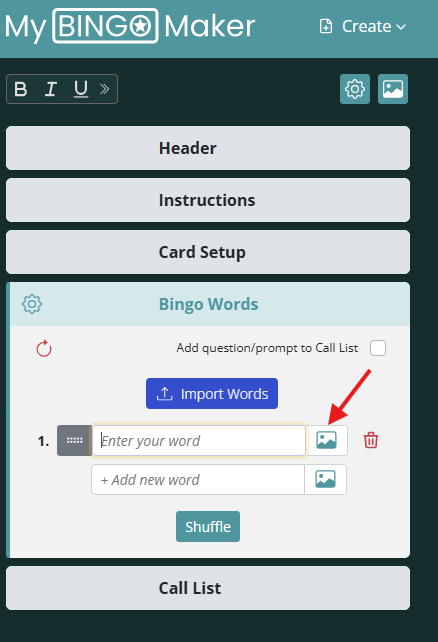
Images added here will be randomized across your bingo cards.
To add decorative images
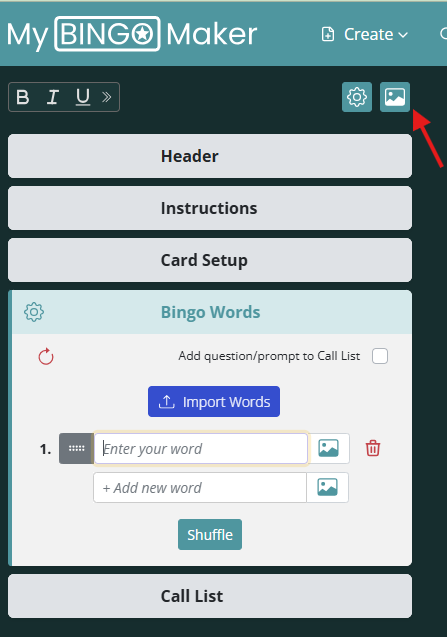
Click the image icon in the top left of the page.
Add an image from our library or upload your own.
Drag the image to any location you'd like on the card.
To add an image on the free space
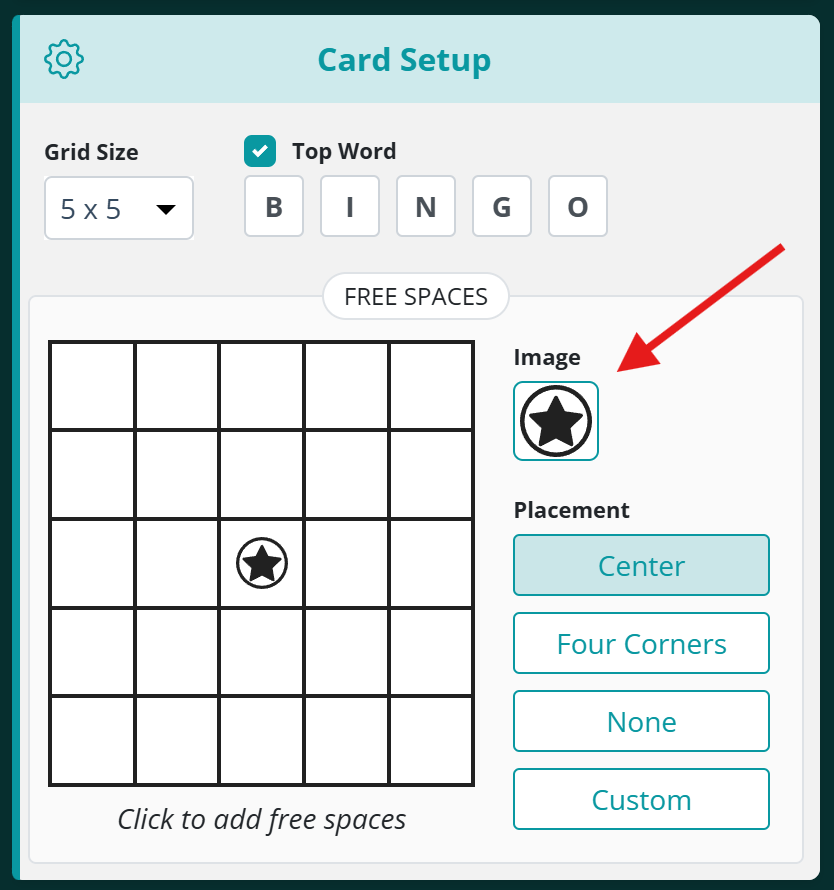
Click Card Setup.
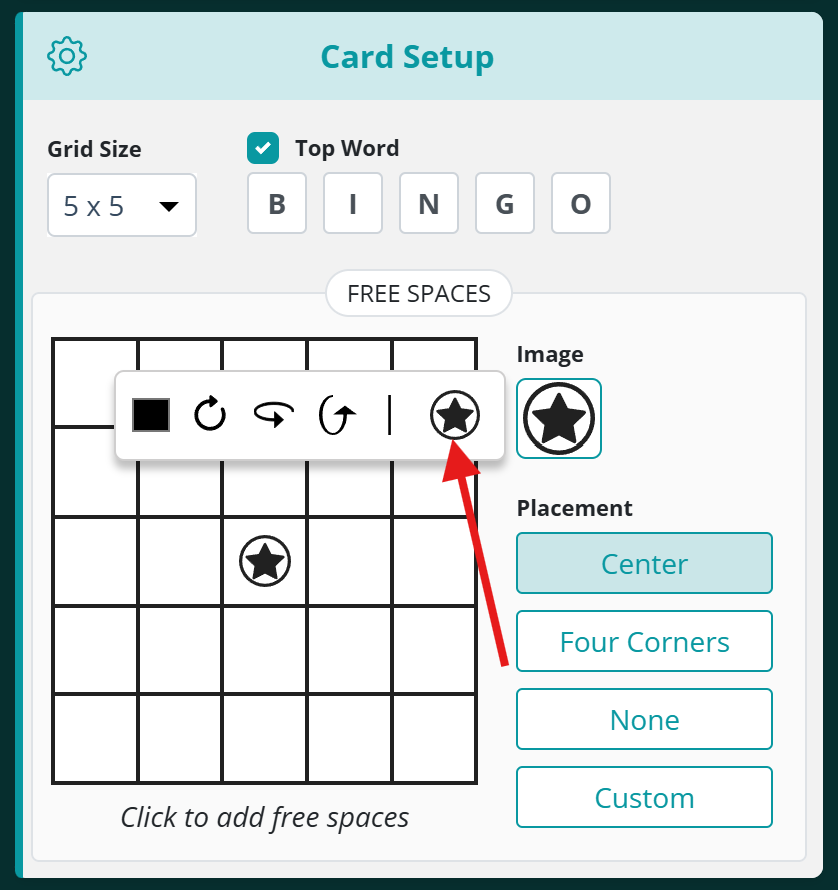
Click the image icon under Free Space.
Add an image from our library or upload your own.
Need help? Reach out to us at support@brightsprout.com and a member of our support team will get back to you within 24 hours.