

You can change the font size across your whole worksheet, or for a single block.
To change the font size across your whole worksheet
Click the gear icon at the top left of the page, just above the Header block.
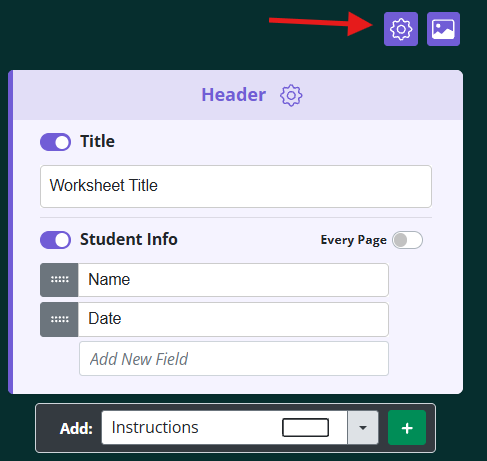
In the settings window, find the section you want to change:
All Headers sets the font size for all headers on your worksheet.
All Body sets the font size for all body text on your worksheet.
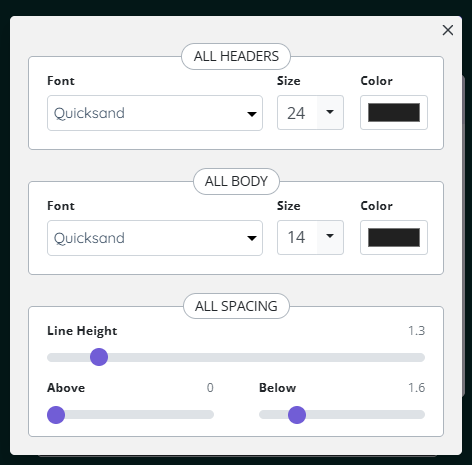
Choose a new size from the Size dropdown.
Click the X to close the window. Your changes are applied to the worksheet.
To change the font size for a specific block
Click the gear icon next to the block title (for example, next to Open Response).
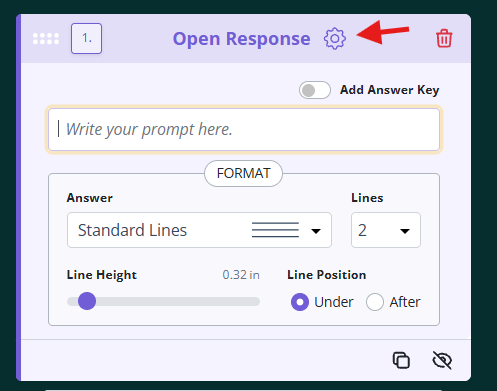
The block's settings will expand. Under Text, choose a new size from the Size dropdown.
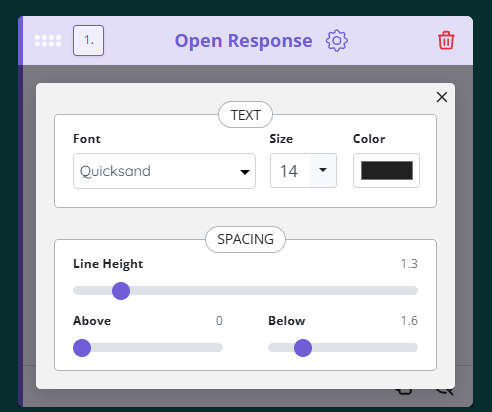
Click the X to close the settings. Only that block is affected.
Tip: In both settings windows you can also change the font, text color, and spacing.