

How do I edit a crossword puzzle?
If you've already published your puzzle, you can still make changes to it. The steps depend on which puzzle style you created.
Step 1: Unpublish your puzzle
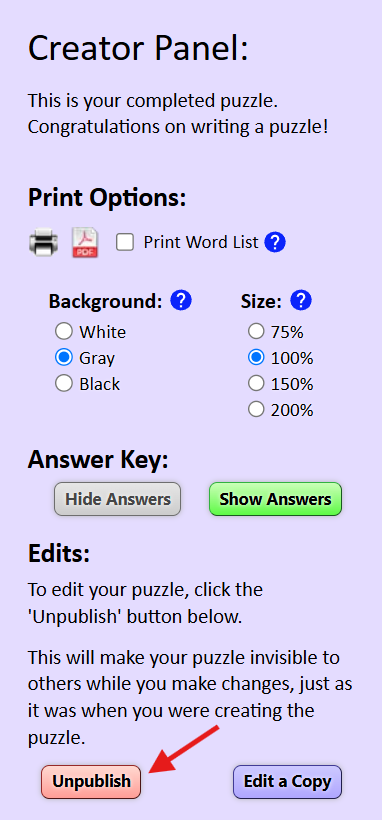
In the Creator Panel, scroll down to Edits and click Unpublish. This puts your puzzle back into editing mode and hides it from others while you make changes.
Step 2: Make your edits
If you created a standard style puzzle:
Click Un-Arrange. This removes the words and clues from the grid and moves them back to the creator panel on the left.
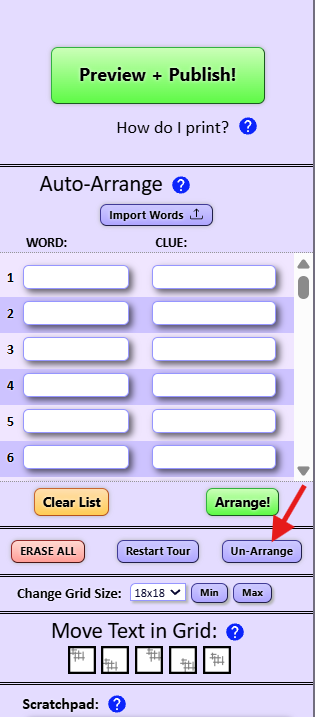
From the creator panel, you can add or remove words and clues, or edit existing ones.
When you're finished, click Arrange! to put your puzzle back together on the grid.
If you created a newspaper style puzzle:
You can edit words directly in the grid and edit your clues. There's no need to un-arrange.
Step 3: Re-publish your puzzle
Click Preview + Publish! to publish your updated puzzle.
How many times can I edit my puzzle?
Subscribers can edit their puzzles as many times as they like.
Single puzzle purchases include one edit. This means you can un-publish and re-publish your puzzle once, so be sure to make all your changes before you click Preview + Publish!